Linux Lab — VirtualBox & Oracle Linux ISO Setup
Before you can create an Oracle Linux Virtual Machine, you need two things ready on your Windows machine: Oracle VirtualBox installed and the Oracle Linux 7.9 ISO image downloaded. This lab walks you through both — step by step — so your environment is fully prepared for Oracle DBA practical labs.
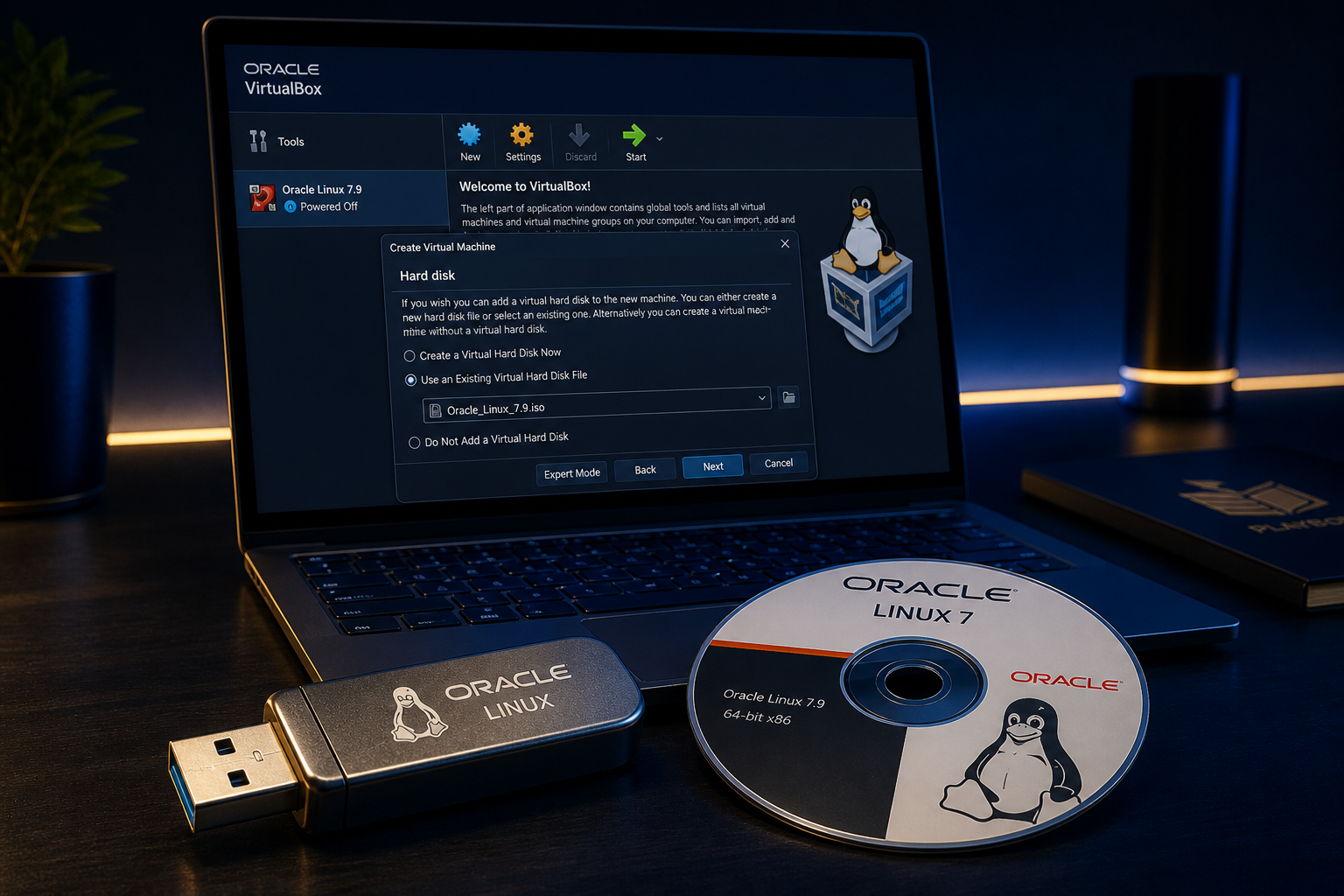
What You Need Before Starting
Ensure you have all of the following before starting this lab. Each item is required to complete the setup successfully.
What You Will Install / Download
Step-by-Step: VirtualBox & ISO Setup
Follow every step in exact order. All 23 screenshots from the original setup process are included and preserved in sequence.
Navigate to the Oracle VirtualBox Download Page
Open your web browser and go to the official Oracle VirtualBox website at virtualbox.org. Click the Downloads link in the left navigation panel. VirtualBox is a free, open-source hypervisor that lets you run multiple operating systems simultaneously on a single host machine — the foundation for every Oracle DBA practice lab.

- URL:
https://www.virtualbox.org/wiki/Downloads - VirtualBox is free and supports Windows, macOS, and Linux hosts
Download the Windows Host Package
On the Downloads page, locate the VirtualBox platform packages section. Click on Windows hosts to download the installer for your Windows machine. The download will start automatically. This is the installer executable (.exe) that sets up VirtualBox on your local system.

- Click: Windows hosts
- File type:
.exeinstaller - Size: approximately 100–120 MB
Locate the Downloaded Files
Once both downloads complete, open your Downloads folder (or wherever you saved them). You should see two files: the VirtualBox installer (.exe) and the Extension Pack (.vbox-extpack). Always install the base VirtualBox application before applying the Extension Pack.

- File 1:
VirtualBox-x.x.x-Win.exe— base installer - File 2:
Oracle_VM_VirtualBox_Extension_Pack-x.x.x.vbox-extpack - Install the .exe first, then the Extension Pack
Run the VirtualBox Installer
Double-click the VirtualBox .exe installer to launch it. When you open the downloaded VirtualBox software it will take you to the installation wizard. Windows may show a User Account Control (UAC) prompt — click Yes to allow the installation. The setup wizard will guide you through the installation process.


- Right-click → Run as administrator if needed
- Accept the UAC prompt when asked
Proceed Through the Setup Wizard
The VirtualBox Setup Wizard will open. Click Next to proceed through the installation screens. You can keep all default settings — the default installation path and features are suitable for a DBA lab environment. Do not change any component selections unless you have a specific reason.


- Click Next through each wizard screen
- Default installation path is recommended
- Keep all default features selected
Accept Network Interface Warning and Continue
During installation, VirtualBox will display a Network Interface warning — this is normal. It informs you that your network connection will be briefly interrupted as VirtualBox installs its virtual network adapters. Click Yes to accept and continue. These virtual adapters are required for VM networking.


- Network interruption is temporary and expected
- Click Yes to proceed
- VirtualBox installs virtual network adapters (required for VM connectivity)
Start the Installation
Once you have reviewed the pre-installation summary, click Install to begin the actual installation process. VirtualBox will copy files, install drivers, and configure virtual network adapters. A progress bar will show the installation status. The process typically takes 2–5 minutes.


- Click Install to begin
- Installation takes approximately 2–5 minutes
- Do not close the installer while progress is running
Complete the VirtualBox Installation
Once the installation finishes, the wizard shows a completion screen. Keep the checkbox selected to Start Oracle VM VirtualBox after installation, then click Finish. VirtualBox Manager will open automatically, confirming the installation was successful.


- Check: Start Oracle VM VirtualBox after installation
- Click Finish
- VirtualBox Manager opens — installation is complete ✅
Navigate to Oracle eDelivery Portal
Now we need to download the Oracle Linux 7.9 ISO image. Open your browser and go to the Oracle Software Delivery Cloud (eDelivery) portal at the URL below. This is Oracle's official distribution site for all Oracle software, including certified OS images. Sign in with your Oracle account to proceed.

- URL:
https://edelivery.oracle.com/osdc/faces/SoftwareDelivery - You need a free Oracle account to access downloads
- Register at
oracle.comif you don't have an account
Search for Oracle Linux 7.9
After signing in, use the search bar to find the ISO image. Type Oracle Linux 7.9 in the search field and click the Search button (or press Enter). The search results will display the available Oracle Linux 7.9 packages. DBAs always download Oracle Linux from the official eDelivery portal to ensure they have a certified, supported OS image.
- Search term: Oracle Linux 7.9
- Click the Search button
- Look for: Oracle Linux 7.9.0.0.0 (Oracle Linux)
Select Oracle Linux 7.9 and Add to Cart
Click on Oracle Linux 7.9.0.0.0 (Oracle Linux) from the search results. Clicking on it will add the ISO image to your download cart. Then click on View Items / Continue in the top-right area to proceed to the download selection screen.

- Click: Oracle Linux 7.9.0.0.0 (Oracle Linux)
- The item is added to your download cart
- Click View Items / Continue to proceed
Review Cart and Continue
The cart screen shows the selected Oracle Linux 7.9 package. Review the items listed and click Continue to proceed to the platform and file selection screen. Here you confirm you want to download Oracle Linux for your target architecture.


- Review the cart — confirm Oracle Linux 7.9 is listed
- Click Continue
Read and Accept the License Agreement
Oracle will display the Oracle Linux License Agreement. Read the agreement carefully. Check the checkbox to confirm you have read and agree to the terms, then click Continue. You cannot proceed to the download without accepting the license.

- Read the license agreement fully
- Check the agreement checkbox
- Click Continue to access downloads
Select Only the Oracle Linux 7.9 x86 64-bit ISO
The file selection screen shows multiple files. Uncheck all unnecessary items and select only the specific ISO file: Oracle Linux Release 7 Update 9 for x86 (64 bit), 4.5 GB. Selecting only the required file avoids downloading gigabytes of unnecessary packages. Click the download button to begin.

- Uncheck: all other items in the list
- Select only: Oracle Linux Release 7 Update 9 for x86 (64 bit)
- File size: approximately 4.5 GB
- Architecture: x86 64-bit — required for Oracle Database 19c
Download the ISO Using Oracle Download Manager
Oracle uses a Download Manager to handle large file downloads. Click the .exe file to open and run the Oracle Download Manager as shown in the screenshot. The Download Manager handles the 4.5 GB ISO download reliably, with pause and resume capability — important for large files on slower connections.


- Click the
.exeto launch Oracle Download Manager - The Download Manager downloads the ISO to your chosen location
- Download size: ~4.5 GB — ensure you have sufficient disk space
- Do not close the Download Manager until the download is 100% complete
✅ VirtualBox & Oracle Linux ISO Setup Complete
Both prerequisites for the Oracle DBA practice environment are now in place. Your system is fully prepared.