Loading · Linux M2 · Core Foundations
INTRO
TOPICS
TERMS
REVISION
QUIZ
Module 02 · Core Foundations

Linux M2 — Core Foundations

Understand Virtual Machines, IP Addressing, and the Linux vs Windows distinction — the three pillars every Oracle DBA must master before touching a production server.
3
Topics
18
Key Points
3
Scenarios
8
Quiz Items
35min
Study Time
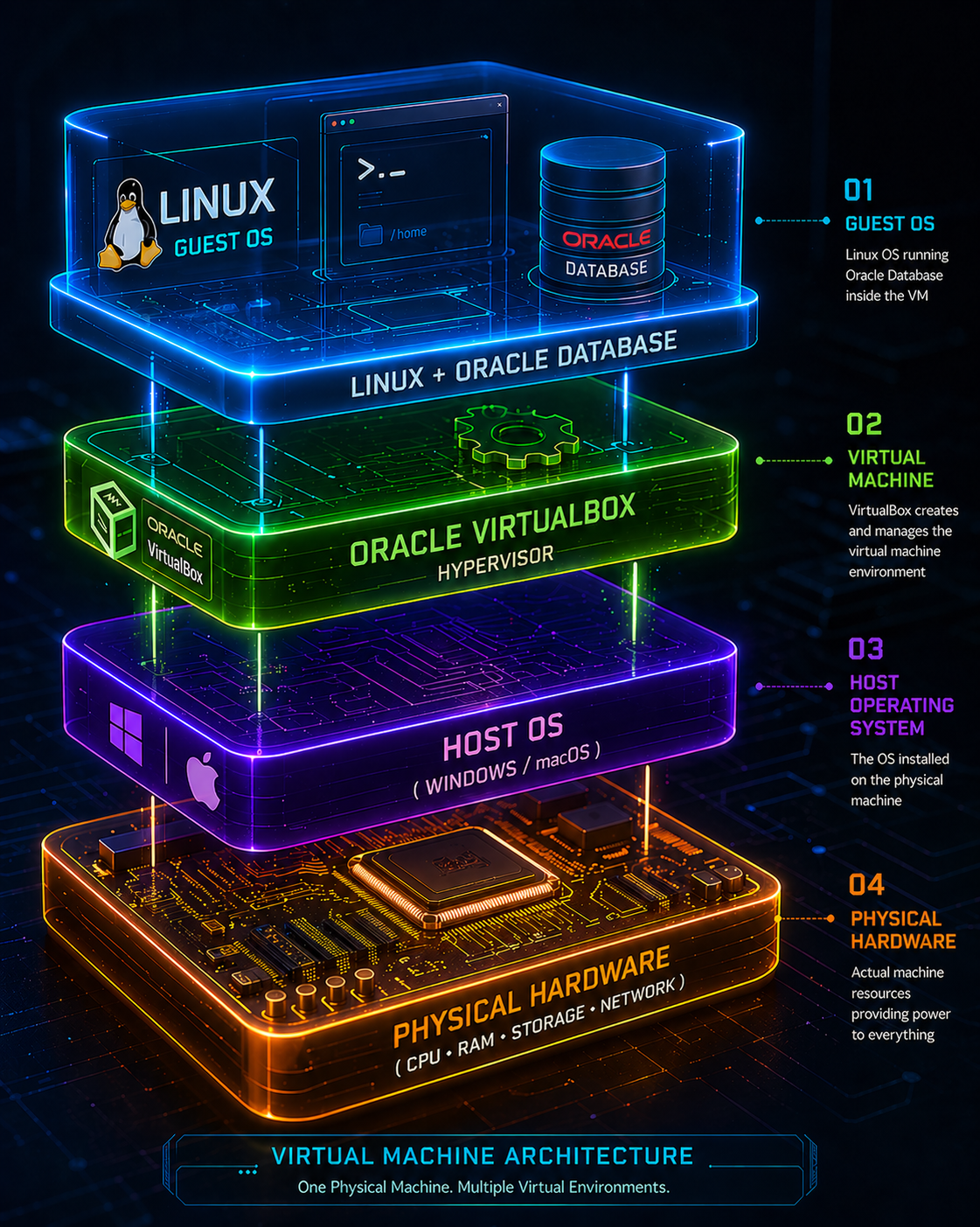
Virtual Machine Architecture

Linux M2 — Core Foundations

Three essential topics. Each one broken into Explanation, Key Points, DBA Relevance, and a real Scenario. Click any tab to begin.

Simple Introduction

A Virtual Machine (VM) is a software-based computer that runs inside your real computer. It behaves exactly like a physical machine — it has its own operating system, storage, memory, and network — but it exists entirely as software.

A layer of software called a hypervisor (e.g., VMware, VirtualBox, Hyper-V) sits between the physical hardware and the VM. It carves up the host machine's resources and allocates them to one or more VMs, each completely isolated from the others.

Think of it like an app on your computer that pretends to be an entirely separate computer — it has its own desktop, files, and operating system, but it's really just a program running on your actual hardware.

In our context, we use Oracle VirtualBox (free software) to run Oracle Linux or CentOS inside a VM — as if it is a real server on your laptop.

VM Architecture — Layer by Layer
🔵
Guest OS (Linux + Oracle DB)
Linux OS running Oracle Database inside the VM. Fully isolated environment for safe practice.
🟢
Hypervisor (VirtualBox)
Creates and manages the virtual machine environment. Allocates CPU, RAM and disk to the VM.
🟣
Host OS (Windows / macOS)
The OS installed on your physical machine — remains running alongside the VM.
🟠
Physical Hardware
Actual machine resources — CPU, RAM, Storage, Network — powering everything above it.
Key Concepts
01
Host Machine — the real, physical computer running the hypervisor and your main OS.
02
Guest Machine — the virtual machine running on top of the host, completely isolated.
03
Hypervisor — the software layer (VirtualBox, VMware, Hyper-V) that creates and manages VMs.
04
Image / ISO — a file used to install or boot an OS inside the VM, like a digital DVD.
05
Isolation — each VM is completely separate. Breaking one has no effect on others or the host.
06
Popular VM software: VirtualBox (free), VMware Workstation, Parallels (Mac). Cloud VMs: AWS EC2, Azure VMs.
07
Minimum VM specs for Oracle practice: 4 GB RAM, 100–150 GB disk space. Host OS needs separate RAM.
Real-World DBA Context
In production, Oracle databases run on dedicated physical servers in a data center or virtual servers on cloud. As a DBA, you connect to those servers remotely.
During your learning phase, a VM on your laptop replaces that server — install Oracle Linux, install Oracle Database, and practice all DBA commands safely.
If something breaks inside the VM — you simply delete it and start again. No consequences, no data loss on your host machine.
Every Oracle DBA needs a Linux environment to practice. Most learners don't have a spare server at home — a VM solves that problem entirely.
Common Mistake & Scenario

Common Mistake: "My laptop is slow — can I still use a VM?"

Yes, but allocate resources carefully. A basic Oracle practice VM needs at minimum 4 GB RAM assigned to the VM and 100–150 GB disk space. Remember your host OS also needs memory to run alongside it.

You connect to a cloud server at work via SSH, and it runs Oracle Database in a VM on a physical rack server in a data center. Your local VM setup mimics that exact architecture — helping you learn the real-world workflow before your first production day.

oracle@oraclelinux — VirtualBox Guest — 80×24
# Check memory assigned to this VM
oracle@oraclelinux:~$ free -h
total used free
Mem: 7.7G 2.1G 5.1G
# Check disk space available
oracle@oraclelinux:~$ df -h /
Filesystem Size Used Avail Use%
/dev/sda1 147G 18G 129G 13%
# ✓ VM ready — sufficient RAM and disk!
oracle@oraclelinux:~$
Explanation

An IP address (Internet Protocol Address) is a unique numerical label assigned to every device connected to a network. It serves two main purposes: identifying a device and providing its location on the network — similar to how a home address identifies and locates a house.

The most common format, IPv4, uses 4 sets of numbers separated by dots (e.g. 192.168.1.105), while the newer IPv6 uses hexadecimal groups separated by colons.

Your router gets one public IP from your ISP and assigns private IPs to all devices in your home via DHCP. NAT (Network Address Translation) lets all your devices share one public IP.

As a DBA, you connect to Oracle servers using their IP address via SSH. Knowing whether you're connecting to a private LAN IP or a public remote IP is fundamental to your daily work.

IP Address — Key Concepts
🔢
IPv4 (Most Common)
4 numbers separated by dots. Example: 192.168.1.105. Supports ~4.3 billion addresses.
🔷
IPv6 (Newer)
8 hex groups separated by colons. Example: 2001:0db8::7334. Virtually unlimited addresses.
🏠
Private IP Ranges
10.x.x.x  |  172.16–31.x.x  |  192.168.x.x
🔁
Loopback / Localhost
127.0.0.1 — refers to your own machine. Used to test local services.
IP Types at a Glance
Public IP

Internet-facing Address

Assigned by your ISP, visible on the internet. Example: 103.21.58.10. This is how the outside world sees your network.

Private IP

Internal Network Address

Used within your home/office network. Example: 192.168.1.x. Not directly reachable from the internet.

Static IP

Fixed, Never Changes

Used by servers and printers. A database server always needs a static IP so DBAs can reliably connect.

Dynamic IP

Changes Periodically

Assigned automatically by DHCP. Most home devices use dynamic IPs — fine for laptops, not for servers.

Key Points
01
An IP address is your device's identity and location on a network — without it, devices wouldn't know where to send or receive data.
02
Subnet Mask — defines which part of the IP is the network vs the device (e.g., 255.255.255.0).
03
Gateway — the router's IP that all traffic passes through to reach the internet (typically 192.168.1.1).
04
DNS — translates domain names (google.com) into IP addresses — the "phone book" of the internet.
05
DHCP — automatically assigns IP addresses to devices joining a network. Removes need for manual configuration.
06
Flow: Your Device → Router (Private IP) → ISP → Internet (Public IP). NAT bridges private and public.
Real-World DBA Context
DBAs connect to Oracle servers using SSH + IP address: ssh oracle@192.168.1.20 — knowing the IP is step one.
In a corporate network, Oracle database servers have static private IPs — so the DBA always knows where to connect.
Cloud Oracle servers (AWS, Azure) have both a private IP (inside the VPC) and a public IP (for remote SSH access).
Your VM on VirtualBox gets its own private IP — use ip a inside the VM to find it and SSH in from your host.
Finding Your IP & Scenario

Your manager gives you a new Oracle server to manage. Before you can connect, you need its IP. On Windows you run ipconfig, on Linux/Mac you use ip a or ifconfig.

Inside your VirtualBox VM running Oracle Linux, you need to find the VM's IP address to SSH into it from your Windows host. You open the terminal and run ip a to discover its private address.

Once you have the IP, you can connect from your Windows host using an SSH tool like PuTTY or Windows Terminal — just like a real DBA connecting to a remote production server.

oracle@oraclelinux — bash — 80×24
# Find the VM's IP address
oracle@oraclelinux:~$ ip a
2: enp0s3: <BROADCAST,MULTICAST,UP>
inet 192.168.56.101/24 scope global
# Check default gateway
oracle@oraclelinux:~$ ip route show default
default via 192.168.56.1 dev enp0s3
# ✓ VM IP: 192.168.56.101 — ready to SSH!
oracle@oraclelinux:~$
Explanation

When you setup a Virtual Machine and installed a Linux OS inside it, you will be looking at two different environments on your screen — Windows on the outside, Linux on the inside.

This naturally raises an important question: "They both look like operating systems. Why does Oracle DBA use Linux and not Windows?"

Linux is free, open-source, lighter, and faster. It powers ~96% of all servers worldwide. Windows dominates desktop but loses on the server side because of cost, resource usage, and compatibility with developer tools.

For a DBA, Linux is the preferred platform because Oracle was originally built for Unix, and most enterprise Oracle deployments run on Linux. Its permissions model, SSH connectivity, and stability make it the clear choice.

Linux vs Windows — Quick Facts
💰
Cost
Linux: Free & open-source. Windows: Paid license (~₹8,000–15,000+ per seat). Oracle Linux is free to download.
📊
Server Market Share
Linux dominates at ~96% of all servers. Windows holds ~72% desktop share but trails on servers.
🔓
Source Code
Linux: Open — anyone can view and modify. Windows: Closed / proprietary — Microsoft-controlled.
Performance
Linux is lighter and faster — you can strip it down to just what you need. Windows is heavier and less flexible.
Feature Comparison
Feature Linux Windows
CostFree & open-sourcePaid license (~₹8,000–15,000+)
DeveloperCommunity / Linus TorvaldsMicrosoft
Server Market Share~96% servers~72% desktop
Source CodeOpen (anyone can view/modify)Closed / proprietary
SecurityFewer malware threats, strong permissionsLarger attack surface (popular target)
GUI on ServersUsually none (terminal only)Full graphical interface
Shell / CLIBash, Zsh — native & powerfulPowerShell / CMD — less standard
Oracle DBA Use✅ Standard choice⚠️ Possible but rare in production
Key Points
01
Linux is free and open-source — no license cost. Oracle Linux is based on RHEL and is freely downloadable.
02
Nearly all web servers, cloud infrastructure, and developer tools are Linux-first — native bash, SSH, Docker support.
03
Linux is more secure — fewer malware threats, faster security patches, and a strong file permissions model.
04
Case sensitivity: Linux file paths are case-sensitive. /home/oracle and /Home/Oracle are different paths.
05
Most production Oracle servers have no graphical interface — you connect via SSH and only see a command prompt.
06
Windows Subsystem for Linux (WSL) is Microsoft's attempt to bridge the gap — but production DBA work always uses real Linux.
07
Bottom line: Windows for daily consumer use. Linux for servers, DBAs, and developers. Many professionals use both.
Real-World DBA Context
Common Mistake 1 — Expecting a GUI on servers: Most production Oracle Linux servers have no desktop environment at all. Accept the terminal early.
Common Mistake 2 — Ignoring case sensitivity: /home/oracle/Home/Oracle — this trips up every Windows-trained beginner.
In production, Oracle DBAs connect to Linux-only environments via SSH — zero chance of clicking through a Windows file manager.
Understanding this difference prevents the beginner mindset of expecting a familiar Windows interface when doing DBA work.
Example / Scenario

You are a Windows user starting your Oracle DBA journey. You open a VirtualBox VM running Oracle Linux. The screen shows only a black terminal — no Start menu, no desktop icons, no right-click.

On Linux, you navigate using cd, list files with ls, and read files using cat or tail. Case sensitivity means a wrong capital letter causes "No such file or directory" errors.

After practicing in your VM, this terminal-only environment feels natural — which is exactly how you will work on every real Oracle production server for the rest of your DBA career.

oracle@oraclelinux — bash — 80×24
# Case sensitivity demo
oracle@oraclelinux:~$ ls /home/oracle
scripts logs backups .bash_profile
oracle@oraclelinux:~$ ls /Home/Oracle
ls: cannot access '/Home/Oracle': No such file or directory
# Navigate to Oracle home (correct path)
oracle@oraclelinux:~$ echo $ORACLE_HOME
/u01/app/oracle/product/19c/dbhome_1
# ✓ Linux case matters — always!
oracle@oraclelinux:~$

Key Terms — M2

Essential vocabulary from this module. Hover each card for details.

CONCEPT

Virtual Machine (VM)

A software-based computer running inside a physical machine, managed by a hypervisor. Has its own OS, storage, memory, and network.

CONCEPT

Hypervisor

Software layer between hardware and VMs that allocates resources. Examples: VirtualBox, VMware, Hyper-V.

TERM

Host Machine

The real, physical computer running the hypervisor and your main OS (Windows or macOS).

TERM

Guest Machine

The virtual machine running on top of the host — completely isolated from it and from other VMs.

CONCEPT

IP Address

A unique numerical label assigned to every networked device. Identifies the device and its location on the network.

COMMAND

ip a

Linux command to display network interfaces and IP addresses. Also: ifconfig. Windows equivalent: ipconfig.

TERM

IPv4 vs IPv6

IPv4 uses 4 dot-separated numbers (e.g. 192.168.1.1). IPv6 uses 8 hex groups (e.g. 2001:db8::1) for vastly more addresses.

CONCEPT

DHCP

Dynamic Host Configuration Protocol — automatically assigns IP addresses to devices on a network. Used by most home routers.

TERM

DNS

Domain Name System — translates human-readable names like google.com into IP addresses like 142.250.195.46.

CONCEPT

NAT

Network Address Translation — lets multiple devices share one public IP. Your router uses NAT to manage all home devices.

COMMAND

free -h

Displays memory usage in human-readable format. Shows total, used, and free RAM — essential for VM resource checks.

TERM

Loopback (127.0.0.1)

Special IP that refers to your own machine. Used to test local services without sending traffic over a network.

M2 — Summary Timeline

Everything you need to recall at a glance. One concept per step.

Topic 1 · VM
A VM is a software computer inside your computer
Managed by a hypervisor (VirtualBox). Has its own OS, storage, memory. Completely isolated from the host machine.
Topic 1 · VM
Host vs Guest — the two sides of virtualization
Host = real physical machine. Guest = the VM running inside it. One host can run multiple isolated guest VMs simultaneously.
Topic 1 · VM
Oracle DBA uses VM as a practice lab
Install Oracle Linux + Oracle DB inside the VM. Safe sandbox — if it breaks, delete and restart. Minimum: 4 GB RAM, 100–150 GB disk.
free -h  |  df -h /
Topic 2 · IP Address
Every networked device has a unique IP address
IPv4 (4 dot-separated numbers, e.g. 192.168.1.10) or IPv6. Identifies the device and its location on the network.
Topic 2 · IP Address
Public vs Private — where your traffic goes
Private IPs (192.168.x.x, 10.x.x.x) live inside your network. Your router's public IP is what the internet sees. NAT bridges them.
ip a  |  ip route show default
Topic 2 · IP Address
DHCP auto-assigns IPs; servers need static IPs
Home devices use dynamic DHCP IPs. Oracle database servers must have static IPs so DBAs can always connect reliably.
Topic 3 · Linux vs Windows
Linux powers ~96% of servers — Windows does not
Free, open-source, lightweight, secure. Windows is more familiar but expensive and heavier — not the production DBA choice.
Topic 3 · Linux vs Windows
No GUI on production servers — terminal only
Production Oracle Linux servers have no desktop environment. DBAs connect via SSH and work entirely through the terminal. Accept this early.
Topic 3 · Linux vs Windows
Linux is case-sensitive — /home/oracle ≠ /Home/Oracle
Every letter's case matters in Linux file paths. Windows ignores case — Linux does not. This single fact trips up every new Windows user.
ls /home/oracle  ≠  ls /Home/Oracle

M2 Quiz — Core Foundations

8 questions covering VMs, IP Addressing, and Linux vs Windows. Click any option to answer.

SCORE: 0 / 8
Questions answered correctly